Assigning domain administrators
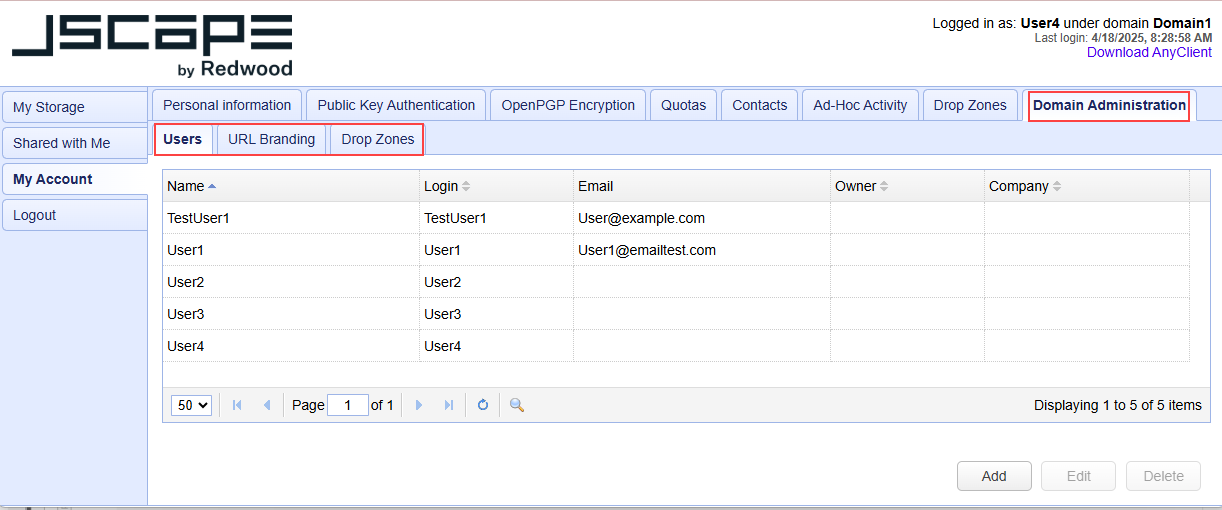
The Domain Administration feature lets you assign a User access to some account management features. The features selected in this module are accessible to the User when they access the MFT Server Web Client (see the image at the bottom of the page).
A User that is a domain administrator can manage Users, Drops Zones and URL Branding, depending on the options selected. For more extensive administrative features, consider creating an administrative account (Administrators) with an optional role (Managing administrative roles) to limit administrative capabilities.
To assign a User domain administration privileges, navigate to [Domain] > ACCOUNTS > Users, then select the desired User or Template. Click Edit, then click the Domain Administration tab.
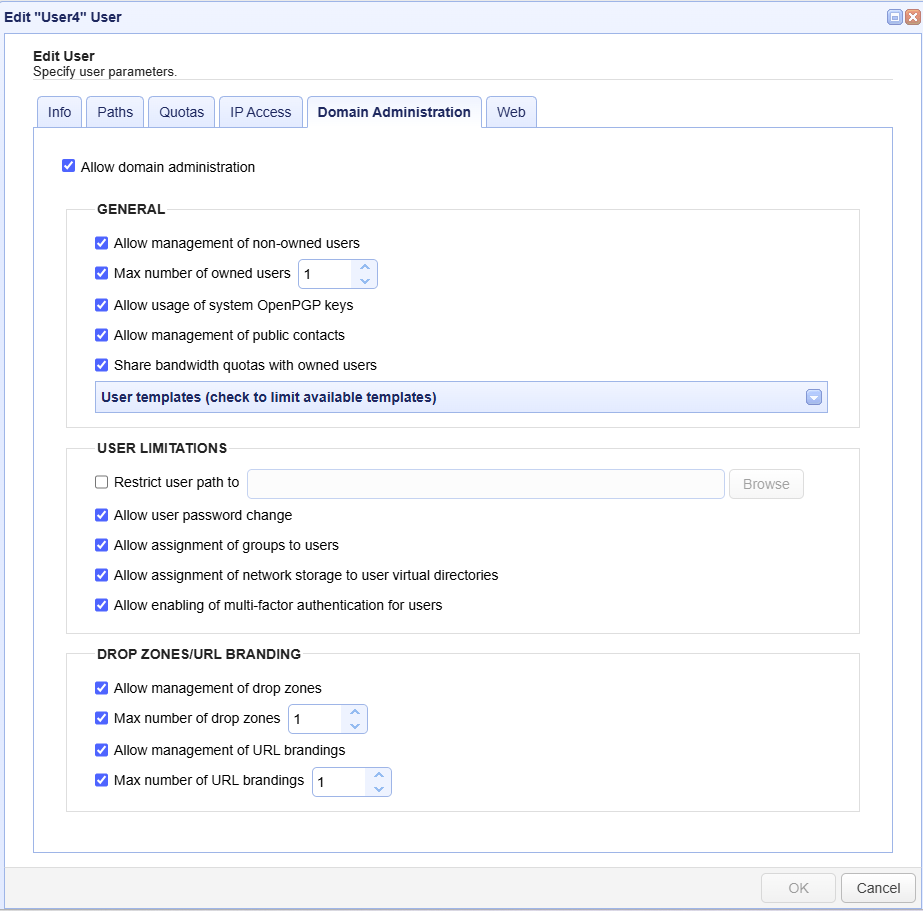
Below you will find a description of the fields.
GENERAL
Allow domain administration — If selected, the Domain administration feature is enabled.
Allow management of non-owned users — If selected, the User can manage any accounts for the Domain. If not selected, the User can only manage accounts that are owned by the User.
Max number of owned users — Identifies the maximum number of Users the User may create/own.
Allow usage of system OpenPGP keys — If selected, the User can view OpenPGP keys created in Key Manager.
Allow management of public contacts — If selected, the User can create and manage public contacts visible to all users in the Domain.
Share bandwidth quotas with owned users — If selected, all owned User's bandwidth rolls up to the Domain administrator User's bandwidth quota, where the sum of owned User bandwidth may not exceed that of the Domain administrator's bandwidth quota.
User templates — Identifies the templates that the Domain administrator may use when creating a User.
USER LIMITATIONS
Restrict user paths to — If selected, the User can only create virtual directories within the specified path or its subdirectories.
Allow user password change — If selected, the User can change the password of managed Users even if the "Allow password change" option is not selected in the Info module located in [Domain] > ACCOUNTS > Users > Users or [Domain] > ACCOUNTS > Users > Templates.
Allow assignment of groups to users — If selected, the User can assign a User to a Group.
Allow assignment of network storage(s) to User virtual directories — If selected, the User can map virtual directories to a network storage.
Allow enabling of multi-factor authentication for users — If selected, the User can enable or disable the Use phone authentication option for users.
DROP ZONES / URL BRANDING
Allow management of drop zones — If selected, the User can create, edit and delete Drop Zones.
Max number of drop zones — When Allow management of drop zones is selected, this identifies the maximum number of Drop Zones that the User can create.
Allow management of URL brandings — If selected, the User can create URL Branding links.
Max number of URL brandings — When Allow management of URL brandings is selected, this identifies the maximum number of URL Branding links that the User can create.
The image below was taken from the MFT Server Web Client user interface. In this example, a User has been granted access to managing Users, Drop Zones and URL Branding.
See also