OAuth2 Usage (Azure)
Below you will find information on how to configure OAUTH2 when using the Azure platform.
This applies to the following MFT Server features:
-
The email service configured in
Settings > MISCELLANEOUS >Email > Email -
Trading partners — POP3, IMAP, and SMTP
-
Trigger Actions — Check Email, Send Email and Send Group Email
Azure steps
-
Create an app registration in Azure AD.
-
Set up a Redirect URI (Authentication > + Add a platform > Web). Set the URL to http://localhost/dummy if using on-prem MFT Server. Set it to https://TenantName.jscapemft.cloud/dummy if on MFTSaaS. Replace TenantName accordingly.
The above URL is a dummy and does not need to point to a working URL. However, it is important. The template URL used in the next section to retrieve an authorization code has a redirect_uri parameter that matches this one.
-
Create a Client secret (Certificates & secrets > Client secrets > + New client secret). Be sure to copy-paste the secret, which is the listed in the Value column.
Retrieve an authorization code, which will be used as the password/token for MFT Server.
-
Copy-paste the following template URLs into a text editor (Notepad, etc.) and replace <Tenant ID> and <Client ID> accordingly. These values are found on the app registration’s
Overviewpage.For on-prem MFT Serveruse:https://login.microsoftonline.com/<Tenant ID>/oauth2/v2.0/authorize?client_id=<Client ID>&response_type=code&redirect_uri=http%3A%2F%2Flocalhost%2Fdummy&response_mode=query&scope=offline_access%20https%3A%2F%2Foutlook.office365.com%2FPOP.AccessAsUser.All%20https%3A%2F%2Foutlook.office365.com%2FIMAP.AccessAsUser.All%20https%3A%2F%2Foutlook.office365.com%2FSMTP.Send&state=12345
For MFTSaaSuse:https://login.microsoftonline.com/<Tenant ID>/oauth2/v2.0/authorize?client_id=<Client ID>&response_type=code&redirect_uri=https%3A%2F%2FTenantName.jscapemft.cloud%2Fdummy&response_mode=query&scope=offline_access%20https%3A%2F%2Foutlook.office365.com%2FPOP.AccessAsUser.All%20https%3A%2F%2Foutlook.office365.com%2FIMAP.AccessAsUser.All%20https%3A%2F%2Foutlook.office365.com%2FSMTP.Send&state=12345
-
Post the fully modified URL into your browser and press enter. You will be redirected to Microsoft's OAuth2 sign-on page. Log in with the email address that will be configured within MFT Server.
-
You should see the following page after successfully logging in. Click the
Acceptbutton.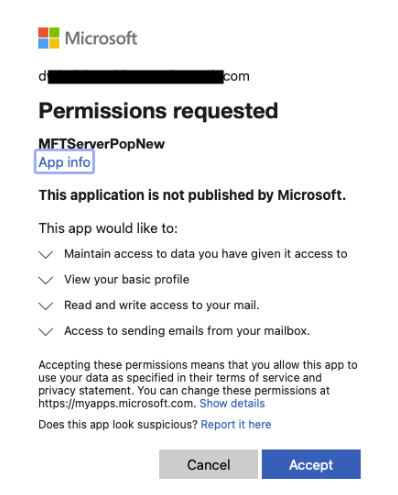
-
After clicking on the Accept button, your browser will redirect to http://localhost/dummy or https://TenantName.jscapemft.cloud/dummy and will fail. This is expected and therefore can be ignored. The authorization code that is needed will be in browser's address bar. Copy and paste it into a text editor. It will look something like this:
-
http://localhost/dummy?code=0.AVUA_aDZGr7lSUO2fmswTXQvsmV11JKg7BxLqZJaEROeu-6IALQ.AgABAAIAAAD--DLA3VO7QrddgJg7WevrAgDs_wUA9P_LrvNUylUUt5Hnlnw90yl4CQJSfhPaqxuBIU4Lc7M5HPoTuDfT8-pW2o1bdm3xmsohTkeBSAZTxUgZKJFNNWKy0mzy2WAZPvW8rdvLm51TEcke6YoKjQl2NHdOwskEjvx-KSWXySlO0oKKEbyQHyIdk-1TrRm1hl4t7HZHa51aTLYHrJaKJnwU0fl93jT3_Q23L8VmsFJtAy-MvmuveonZ_pT9J-zDwfgfQePx5abImq-rZZgItUFEUnEwagZNUz1a93Fqcz0M6yR3wS8FEEtRMa2v45zyRBwQrQ3jBHyOS3dzC4tV4io9coKKYD4IjHehGzhLqVw5DMrc0bdUmUV1ZLJMurnKpXBX-Emhq_6FhN4ya5X4lKse_gpAL_bCF9uLpmIEg9uBycRmFdg1y-CAmqkpg0cpJhwv5Wju-ckGR_pyVCXXU4-DoMPcX6iuqUL4UqXMniTHqmvueQng-zUuXv-r3jh7LUNCoOlkFoCmthCaQkCPFQF1BS9rSYHzb3lxqaEOyq7HLqUo4gaMmFGkdGbdBvpcIGKP-3V5XDtAbqOi3GvUgxQ0iyg--5qZG_sqbXb295LkMThjlgLmRL7PpJ6jo7R36CRfOMAD_USH7N9EPqUyPiusxrdrLhT9t8UFTVKPs4mWtce3LsFOLVCC-nCkU-_vULy3r9ud3UpC0oPWh_UPU4EtckJW7LEZURuXY3BmeFhI66toPMkhVEyNql6CPinE3s73uOFbIBVNGQ&state=12345&session_state=31691f0a-231f-4d62-8015-423f0bc2bcbb#
The authorization code is displayed in italics, in between code= and &state parameters.
Configuring MFT Server
Below you will find the MFT Server fields related to OAuth2.
Username — <The email used to get the authorization code above>
Password/Token — <The authorization code returned above>
AuthenticationType — OAUTH2
Token Endpoint URL — https://login.microsoftonline.com/<Tenant ID>/oauth2/token
Client ID — <Client ID>
Client Secret — <Client Secret>
Redirect URL — http://localhost/dummy (
on-prem)
Redirect URL — https://TenantName.jscapemft.cloud/dummy (
JSCAPE SaaS)
The username should have an Azure Microsoft 365 Business Basic license.
Check the following page for the hostname, port and encryption/connection type settings for Office 365 servers: