Setting Listener Preferences
Listener preferences lets you customize MFT Server connection settings.
Below you will find the protocols that support configuring connection preferences.

FTP/S connection settings are managed under the [Domain] SERVICES > Listeners > FTP/S tab.
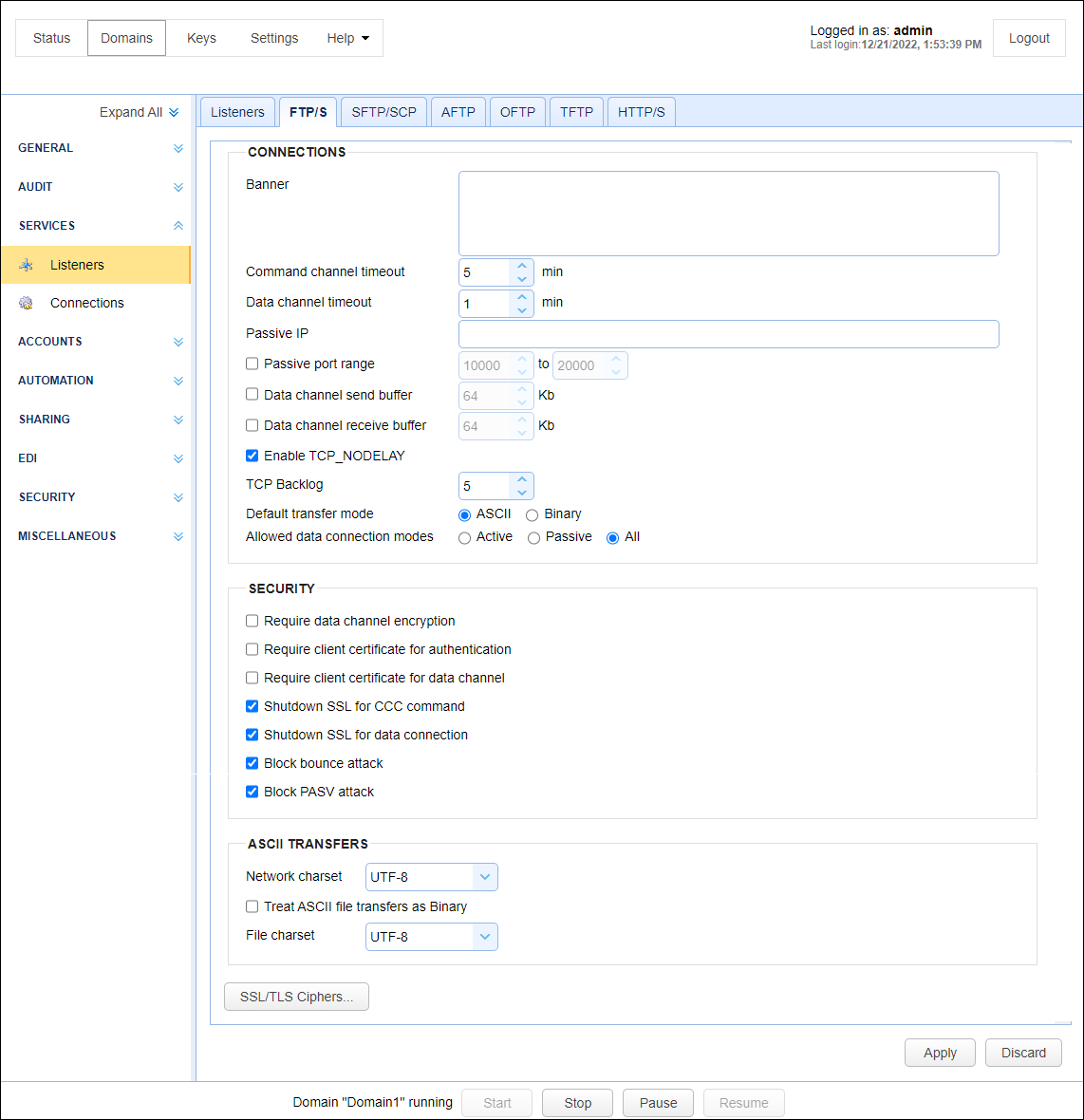
The FTP/S fields are described below.
CONNECTIONS
Banner — Identifies the banner to display for FTP clients.
Command channel timeout (min) — Identifies the time in minutes that a client may remain inactive on the command channel before the server forcefully disconnects the client.
Data channel timeout (min) — Identifies the time in minutes that a client may remain inactive on the data channel before the server forcefully disconnects the client.
Passive IP — Identifies the IP to use when responding to passive (PASV) client requests.
Passive port range — If selected, identifies the port range on the server for servicing PASV client requests.
Data channel send buffer — If selected, identifies the size of the send buffer for the data channel. The Java Virtual Machine (JVM) is the default send buffer size.
Data channel receive buffer — If selected, identifies the size of the receive buffer for the data channel. The JVM is the default receive buffer size.
Enable TCP_NODELAY — If selected, Nagle's algorithm is disabled.
TCP Backlog — Identifies the OS internal queue for incoming TCP connection initialization packets.
Default transfer mode — Identifies the default transfer mode (ASCII or Binary) used by MFT Server if the client does not specify a transfer mode.
Allowed connections modes — Identifies the allowed connection modes for file transfers and directory listings. This includes Active, Passive, or All.
SECURITY
Require data channel encryption — If selected, the client is required to encrypt the data channel when using FTPS (FTP over SSL) protocol.
Require client certificate for authentication — If selected, users authenticating using FTPS (FTP over SSL) are required to authenticate using data encrypted with a private key that maps to a server-installed client certificate.
Require client certificate for data channel — If selected, users requesting data transfer using FTPS (FTP over SSL) are required to supply data encrypted with a private key that maps to a server-installed client certificate.
Shutdown SSL for CCC command — If selected, client must properly shutdown SSL connections for command channel when issuing CCC command.
Shutdown SSL for data connection — If selected, client must properly shutdown SSL data connections.
Block bounce attack — If selected, FTP/S services are only allowed to make PORT requests to originating host.
Block PASV attack — If selected, users are only allowed to connect to passive data ports that are initiated by same client on command channel.
ASCII TRANSFERS
Network charset — Identifies the character encoding used to transfer files names and file contents.
Treat ASCII file transfers as Binary — If selected, ASCII files are transferred in binary mode.
File charset — Identifies the character encoding used to transfer file contents.
Ciphers
SSL/TLS Ciphers — Identifies the SSL/TLS ciphers to enable for FTPS (FTP over SSL) services. See SSL/TLS Ciphers.
SFTP/SCP connection settings are managed under the SERVICES > Listeners > SFTP/SCPtab.
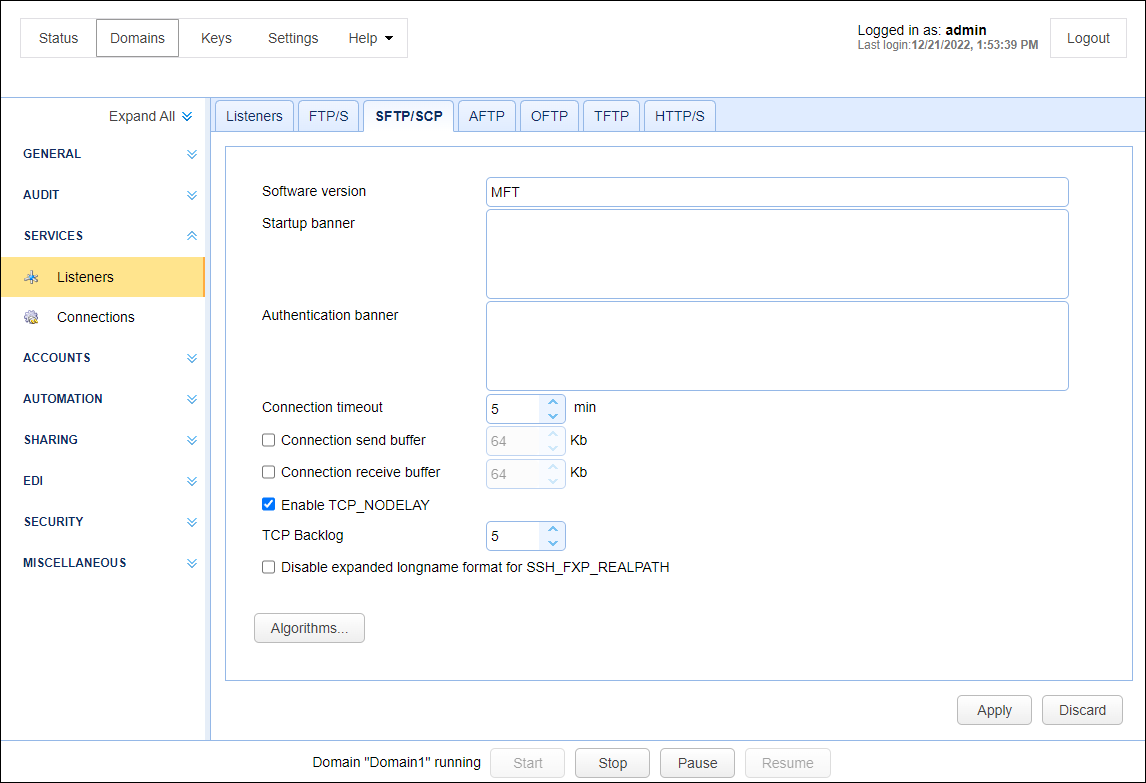
Software version — Identifies SSH version banner that displays when connecting. The value entered cannot contain any spaces.
Startup banner — The banner that displays for SFTP clients prior to displaying the SSH version banner.
Authentication banner — The banner that displays for SFTP clients prior to displaying the authentication prompt.
Connection timeout — The time in minutes that a client connection can remain inactive before the server forcefully disconnects the client.
Connection send buffer — The size of the send buffer. The default is the send buffer size for JVM.
Connection receive buffer — The size of the receive buffer. The default is the receive buffer size for JVM.
Enable TCP_NODELAY — If selected, Nagle's algorithm is disabled.
Disable expanded longname format for SSH_FXP_REALPATH — If selected, the longname format is disabled. This is used when an SFTP client cannot handle long paths in SSH_FXP_REALPATH packets.
Algorithms — Lists all algorithms and ciphers, their order of preference, and whether they are enabled.
See also
Additional libraries needed for SFTP ciphers
AFTP connection settings are managed under the SERVICES > Listeners > AFTPtab.
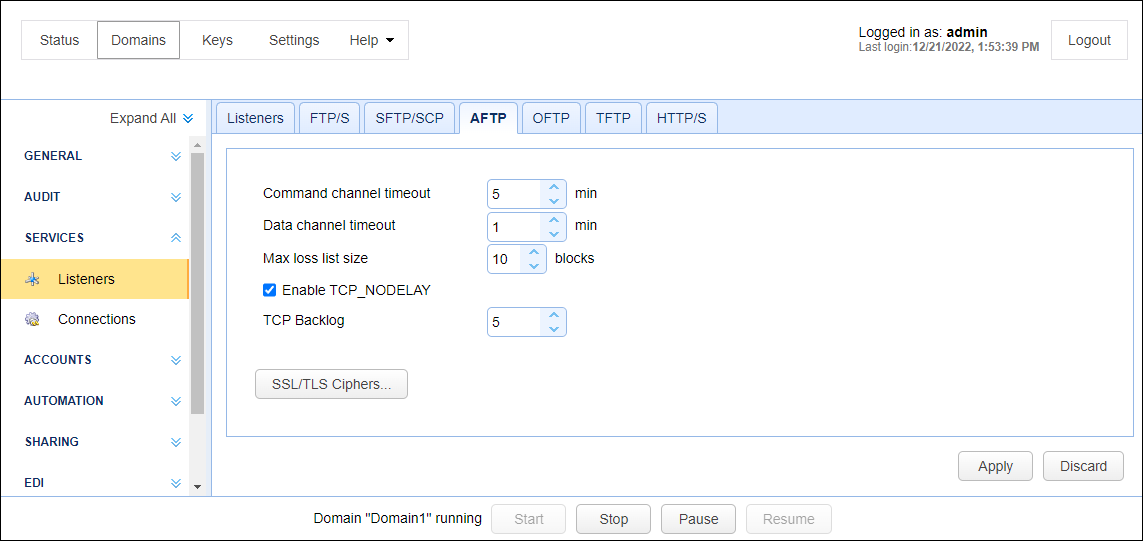
The AFTP fields are described below.
Connection channel timeout (min) — Identifies the time in minutes that the client channel (TCP) connection can remain inactive before the server forcefully disconnects the client.
Data channel timeout (min) — Identifies the time in minutes that the client data (UDP) connection can remain inactive before the server forcefully disconnects the client.
Max loss list size — Identifies the maximum number of lost blocks of data that may exist in memory for a client session.
Enable TCP_NODELAY — If selected, Nagle's algorithm is disabled.
TCP Backlog — This option lets you set the OS internal queue for incoming TCP connection initialization packets.
SSL/TLS Ciphers — Identifies the SSL/TLS ciphers to enable for AFTP services. See SSL/TLS Ciphers.
OFTP2 connection settings may be managed under the SERVICES > Listeners > OFTP2tab.

The OFTP2 fields are described below.
Connection timeout — Identifies the time in minutes that the client channel (TCP) connection can remain inactive before the server forcefully disconnects the client.
Max data buffer size — Identifies the maximum data buffer size for OFTP2 connections.
Max credit — Identifies the maximum number of packets that the client can send to the server before receiving a server acknowledgment that it is ready to receive more data.
[Overwrite | Generate unique] file when existing file found — Identifies what to do if an existing file is found during an OFTP2 file upload.
SSL/TLS Ciphers — Identifies the SSL/TLS ciphers to enable for OFTP2 services. See SSL/TLS Ciphers.
TFTP connection settings may be managed under the SERVICES > Listeners >TFTPtab.
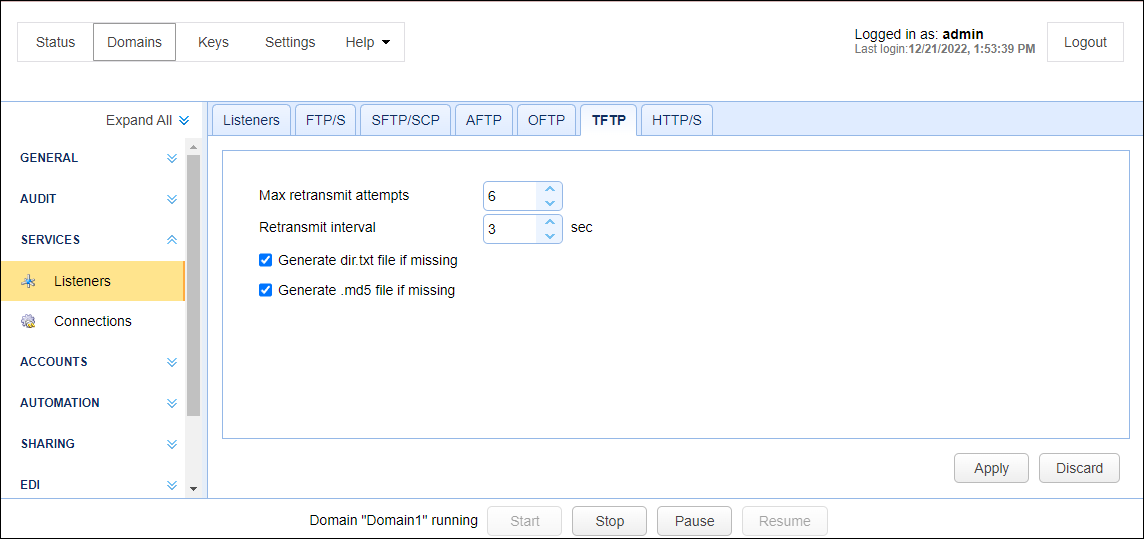
The TFTP fields are described below.
Max retransmit attempts — Identifies the maximum number of times that a sender cam unsuccessfully send a message before failure.
Retransmit interval — Identifies the retransmission interval (seconds) between each message retransmission attempt.
Generate dir.txt file if missing — If selected, the client can request the file dir.txt to obtain a directory listing of available files.
Generate .md5 file if missing — If selected, the client can request any filename with a .md5 extension to obtain an MD5 hash of filename contents.
HTTP/S connection settings may be managed under the SERVICES > Listeners > HTTP/Stab.
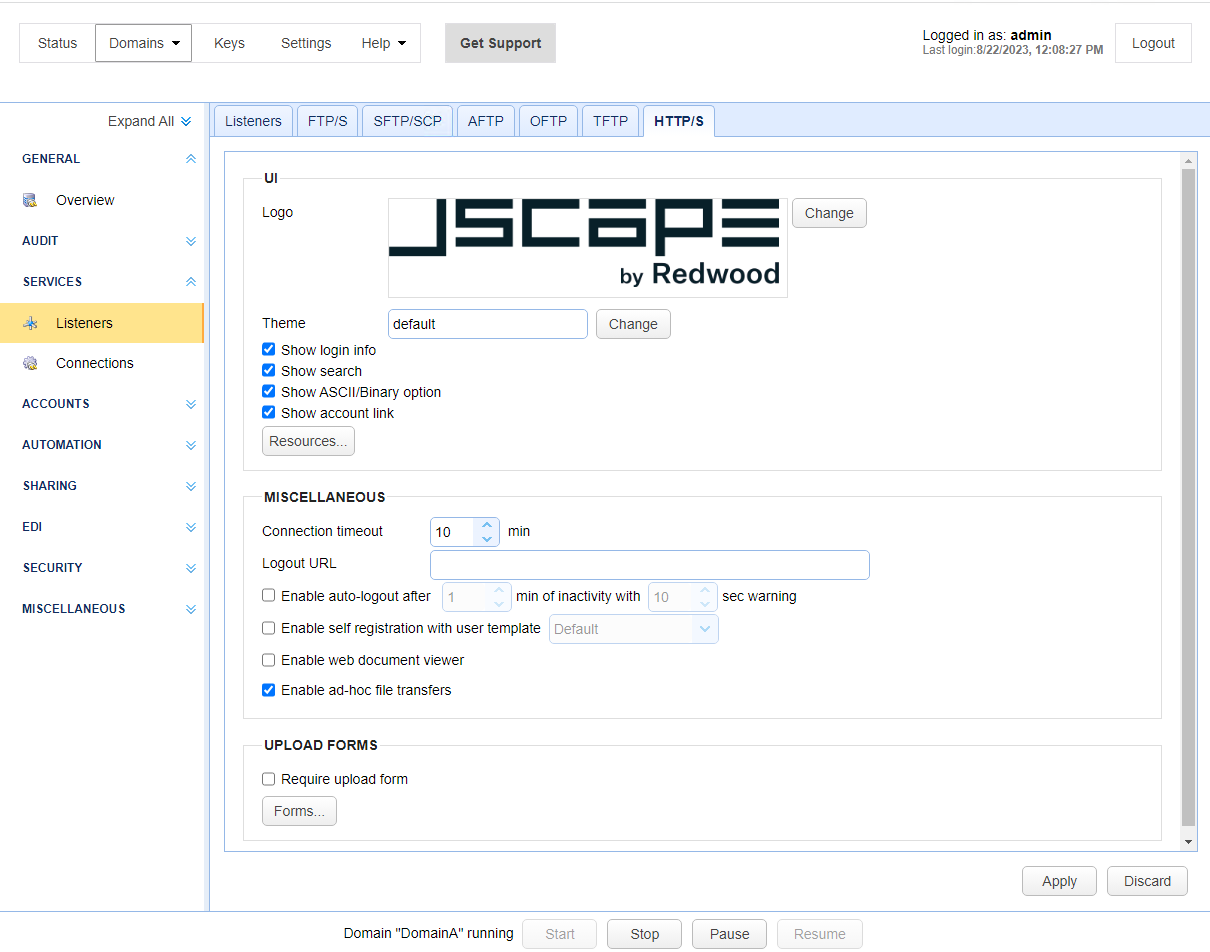
The HTTP/S fields are described below.
Theme — Identifies the default color theme used for the buttons, menus, tabs, and other GUI elements in the MFT Server Web Client.
MyAccount > Personal Information. The user-level theme takes precedence over the theme field set in SERVICES > Listeners > HTTP/S.
To change the theme, click on Change to the right of the Theme field.
A panel displays on the right-hand side of the page displaying all the themes in individual boxes you can choose from.
The current theme in the
Themefield is temporarily applied to the MFT Server Manager. This serves as a visual aid letting you see what the current default theme looks like for the MFT Server Web Client.
To select a theme, click on the desired theme's box. The selected theme is temporarily applied to the MFT Server Manager, allowing you to preview what it will look like if applied to the MFT Server Web Client. To save a selected theme, click anywhere outside of the theme panel. The Theme field updates with the theme name you selected, and the MFT Server Manager's theme reverts to its currently configured theme. Click Apply, or alternatively click the Discard button to cancel.
Logo — Identifies the logo displayed in the upper-left corner when using the HTML user interface.
Show login info — If selected, the current username and domain are displayed in the upper-right corner.
Show search — If selected, searches on indexed documents can be performed.
Show ASCII/Binary option — If selected, the user has the option of uploading files in both ASCII and binary modes. If not selected, only binary is allowed, and the user cannot change this setting.
Show account link — If selected, the My Account link is displayed in the upper-right corner, allowing users to change their account contact information.
Resources... — Identifies the current language resource file. Language resource files are used to specify alternative user interface labels based on the client browser default language.
Connection timeout — Identifies the connection timeout for HTTP requests in minutes.
Logout URL — Identifies the URL to redirect the user upon clicking the Logout link.
Enable auto-logout after — If selected, the user is automatically logged out after X minutes of inactivity with grace period of Y seconds.
Enable self-registration with user template — If selected, lets new users self-register. The properties of the newly created user account depends on the template chosen from the dropdown list.
Enable web document viewer — If selected, the web document viewer is enabled.
Enable ad-hoc file transfers — If selected, ad hoc file transfers are enabled for the domain.
Show buttons shortcuts — If selected, button shortcuts (e.g., F2, F5, F7) are displayed on the buttons.
Forms... — Forms available during file upload when using HTML user interface.